What it is
SafeWeave scans the repositories you connect from GitHub. Connecting GitHub lets SafeWeave list your repositories; connecting a repository starts scanning it on every push and every pull request, and once a day on Cloud and Cloud Plus.
Who gets it
| Plan | Connected repositories |
|---|---|
| Free | 1, kept for as long as you're on Free |
| Cloud | 5 |
| Cloud Plus | 15 |
How to use it
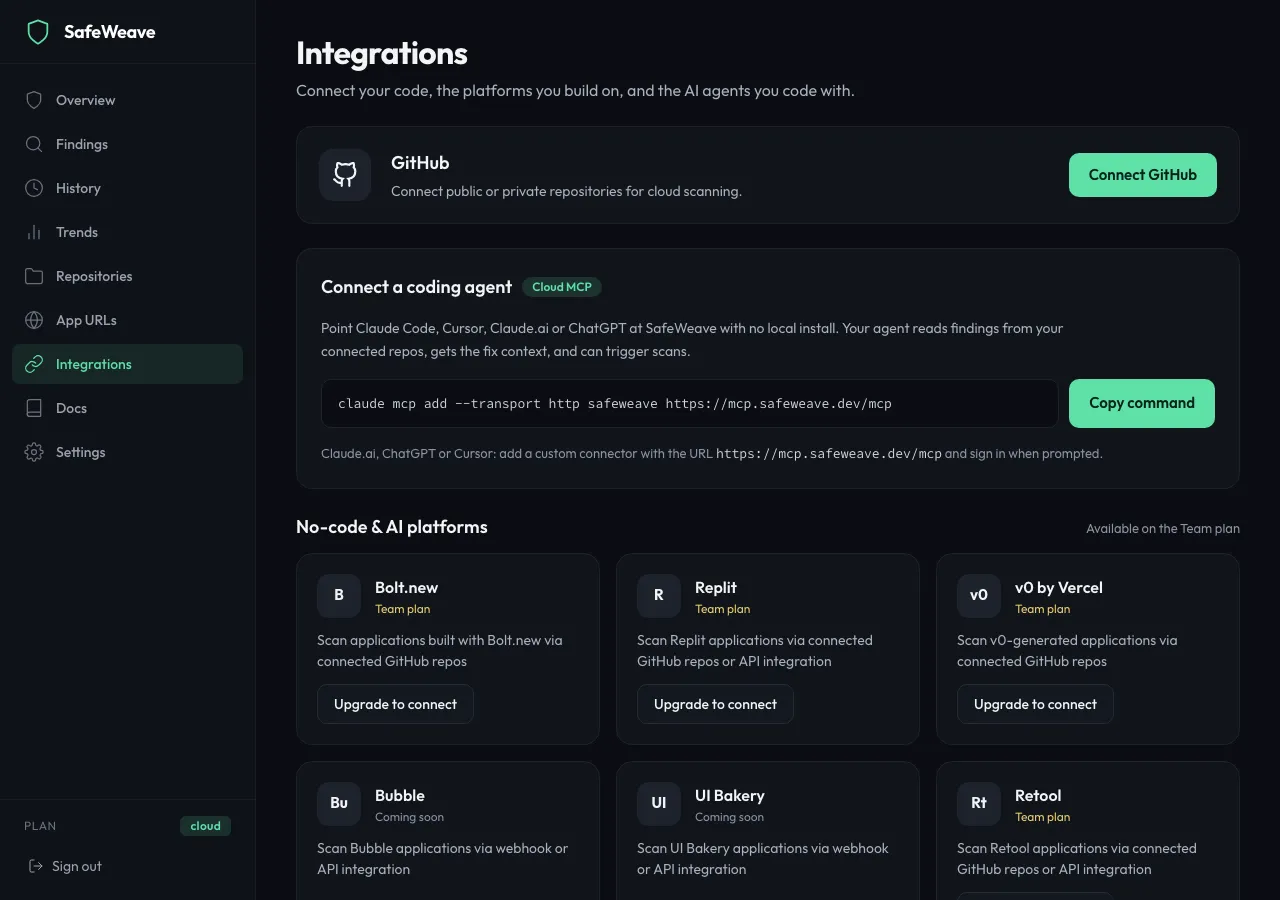
Connect GitHub
- In the sidebar, click Integrations.
- On the GitHub card, click Connect GitHub.
- GitHub asks you to authorize SafeWeave. Click Authorize.
- You return to Integrations and see "GitHub connected as @your-name. You can now connect repositories."
Add a repository
- In the sidebar, click Repositories.
- Click Connect repository, or the Connect your first repository / Monitor another repository tile.
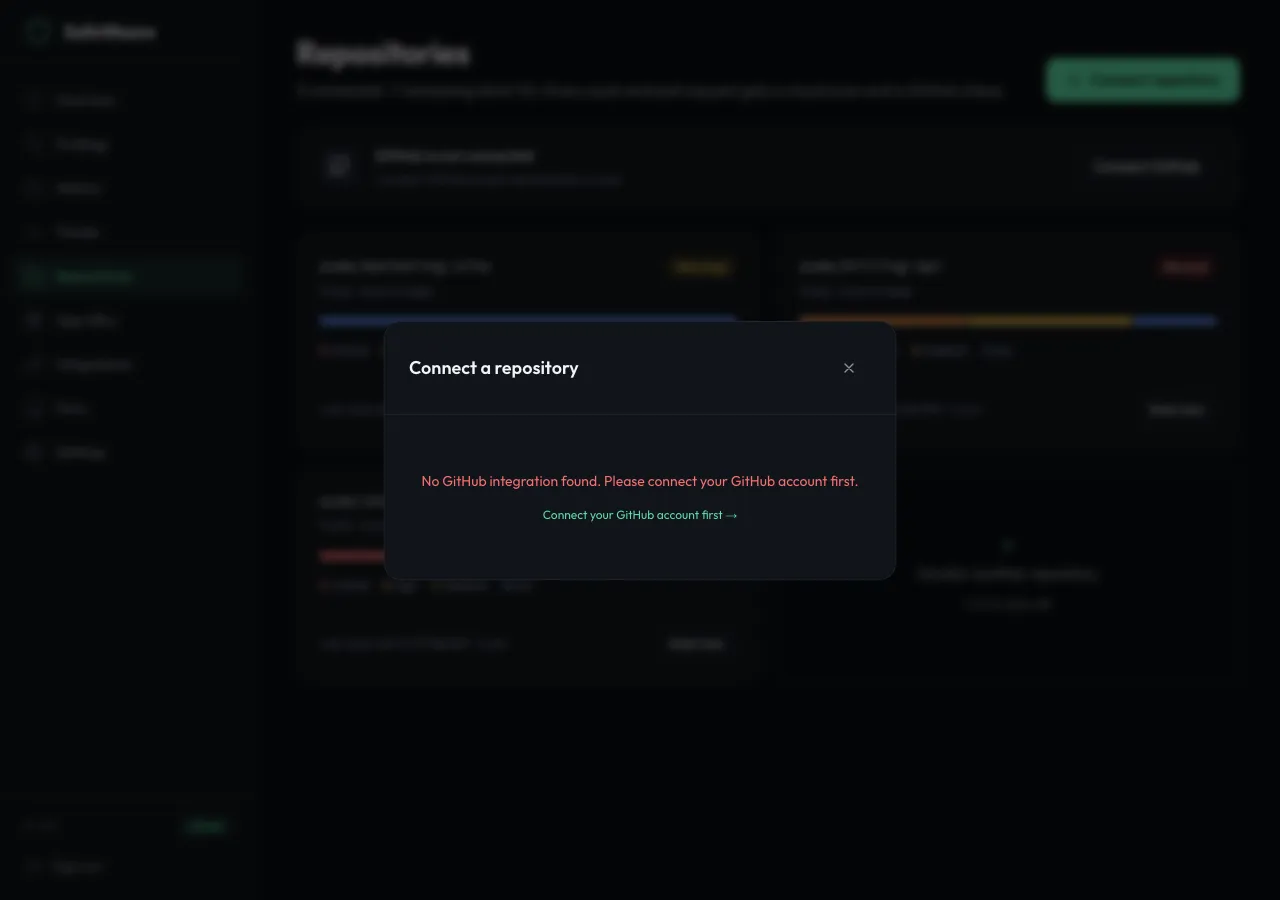
- In Connect a repository, click Connect next to the repository you want.
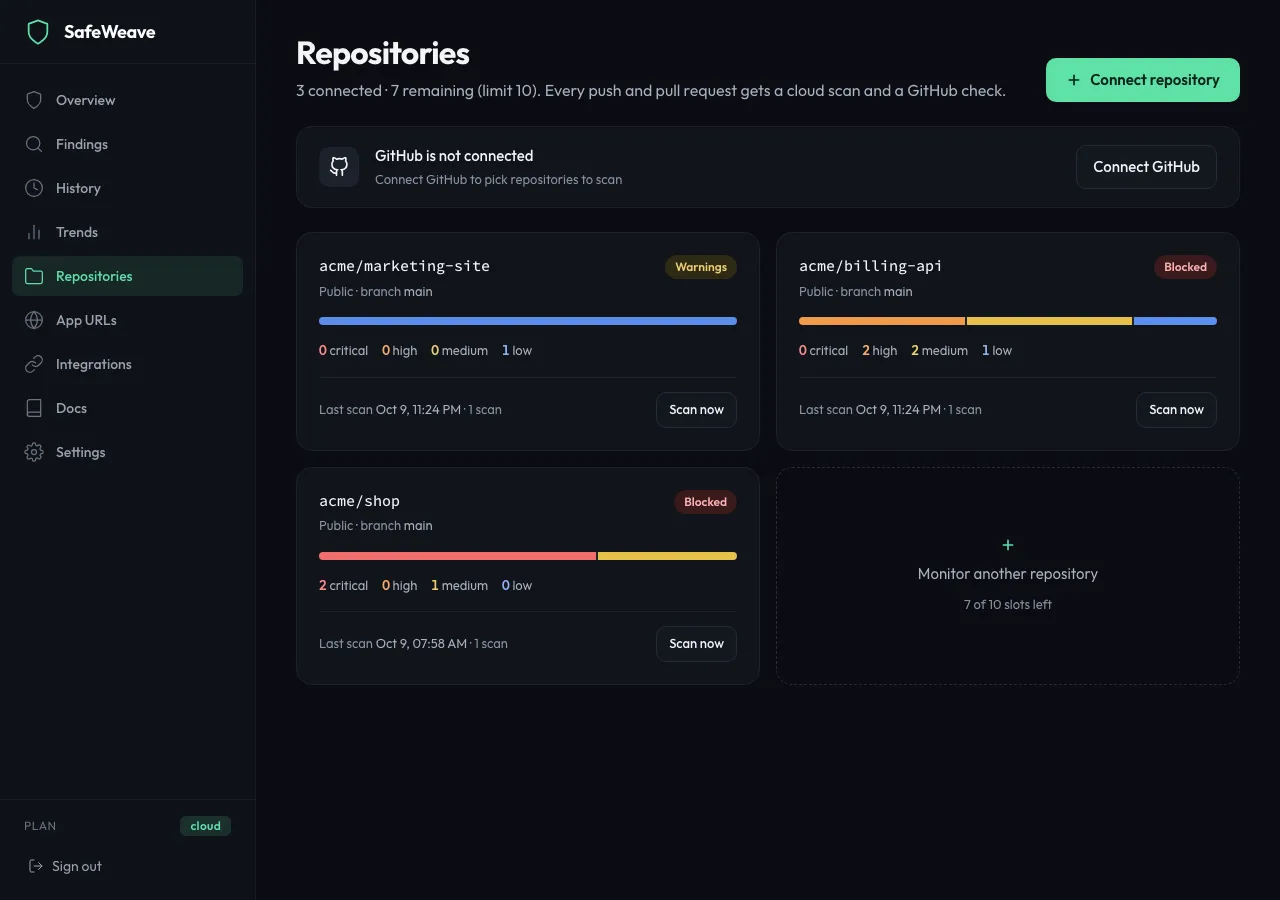
- It appears as a card on Repositories. Click Scan now to scan it straight away; otherwise the first scan runs on your next push.
Disconnect a repository
Cloud and Cloud Plus.
- Open the repository from Repositories.
- Click Disconnect at the top right and confirm.
Scanning stops, and the repository's code excerpts and AI answers are deleted. Finding counts and scan history are kept. On Free the Disconnect button isn't shown: your one repository stays connected.
Disconnect GitHub
On Integrations, click Disconnect on the GitHub card. This happens straight away, without a confirmation. Scans that need GitHub stop until you connect it again.
What you'll see
- The Repositories page shows "GitHub connected as @your-name" at the top, and one card per repository with its status and last scan.
- The page title line says how many repositories are connected and how many you have left.
Limits
- When you reach your plan's limit, the Connect repository button is hidden and a panel offers Upgrade plan.
- Free's one repository is scanned in the cloud (5 scans a month), and you see its grade and finding counts. Full details are on Cloud.
If something goes wrong
- "Failed to connect GitHub": click Connect GitHub again.
- "Connect your GitHub account first →" in the repository window: GitHub isn't connected. Connect it under Integrations first.
- A repository is missing from the list: check that your GitHub account can open it. For an organisation's repositories, an owner of the organisation may need to approve SafeWeave in the organisation's GitHub settings.
- "Failed to connect repository": reload the page and try again.