What it is
An App URL scan checks your deployed app the way anyone on the internet can see it: security headers, the TLS certificate, email records (SPF, DMARC, DKIM), and a safe probe for exposed files and misconfigurations. On Cloud and Cloud Plus it also runs live app checks that look for database tables, storage buckets, keys and AI routes your app leaves open. Live checks only read; they never change anything in your app. See Live app checks.
Who gets it
| Free | Cloud and Cloud Plus | |
|---|---|---|
| Scan an app URL | Yes | Yes |
| Score and grade | Yes | Yes |
| Findings | The first ones | All, with How to fix |
| Live app checks | No | Yes |
| Monitoring and email alerts | No | Yes |
How to use it
Scan an app
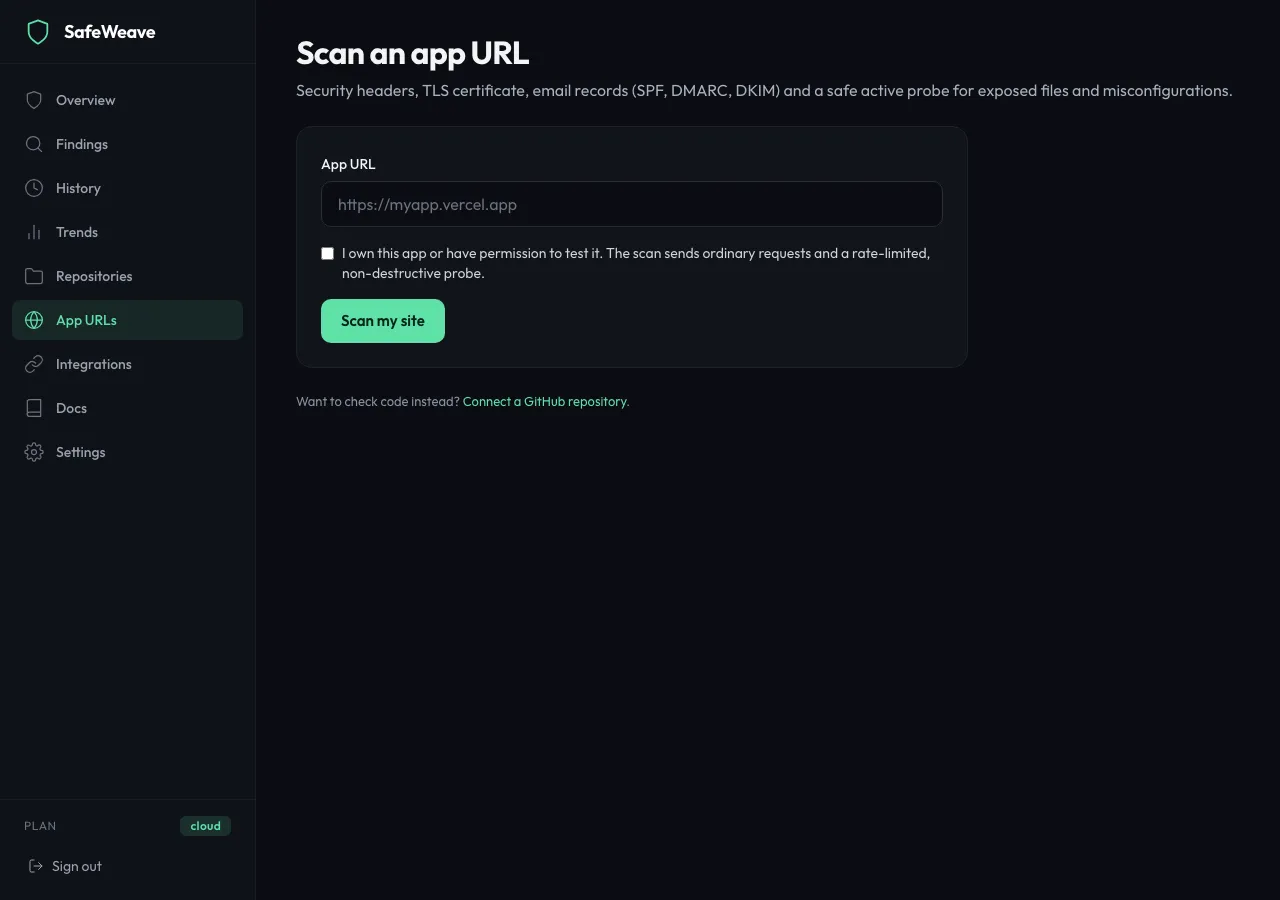
- In the sidebar, click App URLs, then Scan an app URL.
- In App URL, type your app's address, for example
https://myapp.vercel.app. - Tick I own this app or have permission to test it. Only scan apps you own or have permission to test.
- Click Scan my site.
You see Scanning and the steps Connecting, TLS and DNS, Security headers and Active probe. Most scans finish in one to three minutes. You can leave the page; the result is saved.
Read the result
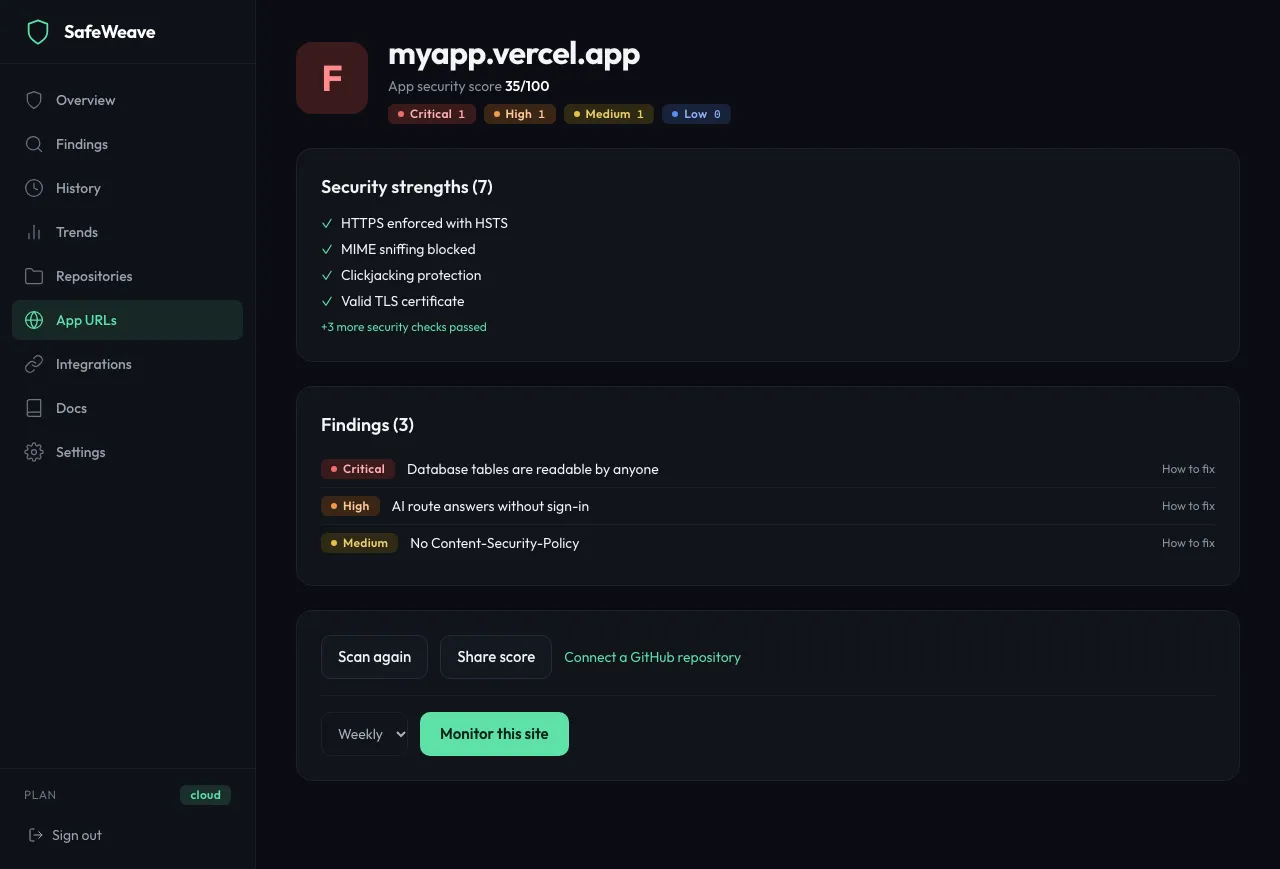
- App security score out of 100, with counts per severity.
- Findings: what's wrong. On Cloud, click How to fix on any finding to see the fix.
- Security strengths: the checks your app already passes. Click +N more security checks passed to see them all.
- Didn't apply: checks that don't fit your app.
Scan again, share, monitor
In the actions card on the result:
- Scan again opens the form with the address filled in.
- Share score copies a public link to the result, showing the score only. It changes to Link copied.
- Monitor this site (Cloud and Cloud Plus): choose Weekly or Daily, then click Monitor this site.
Manage monitors
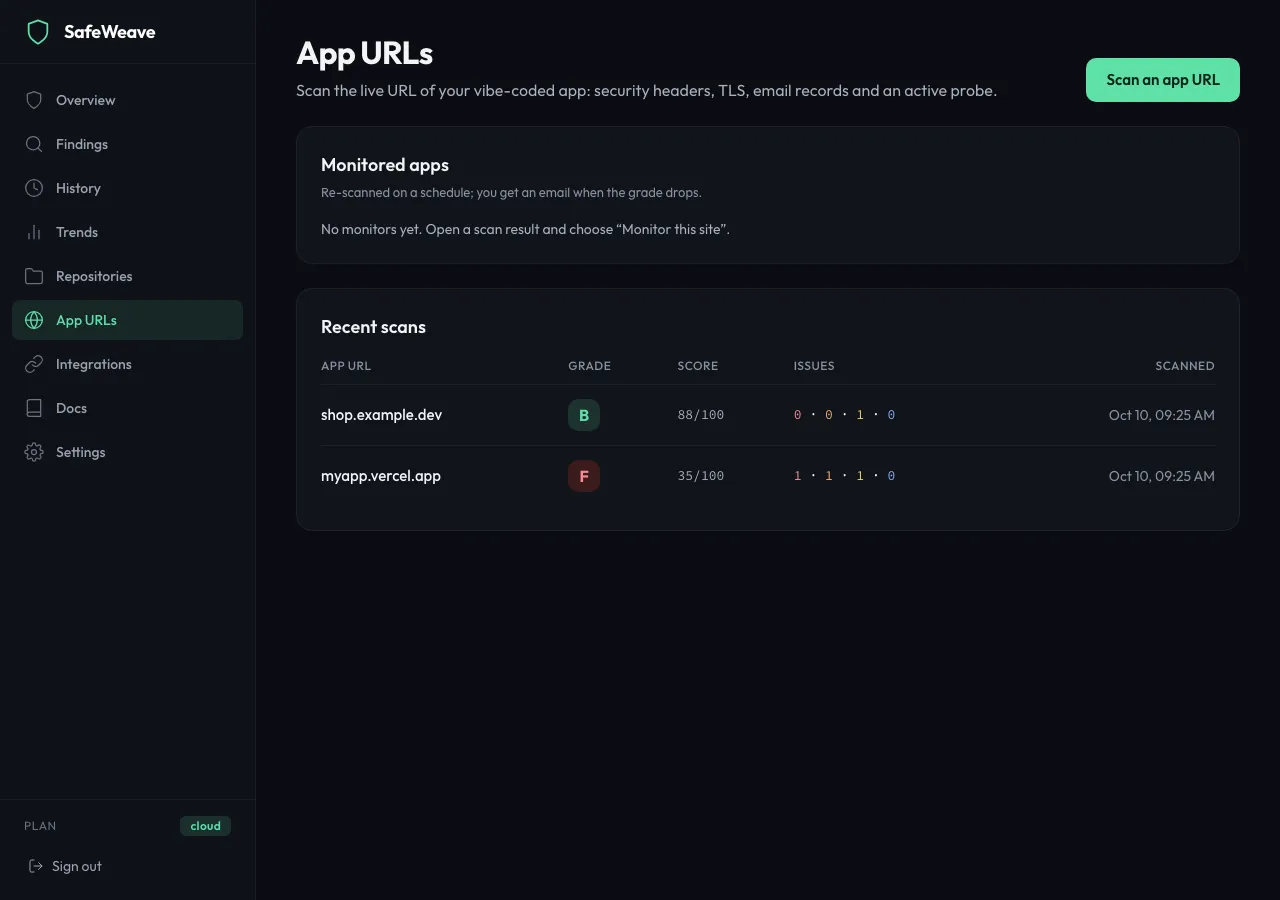
The App URLs page lists Monitored apps with each app's grade, its last 30 days, the schedule and the last run. Click Pause or Resume to stop and restart a monitor, or Remove to delete it. Remove happens straight away, without a confirmation.
What you'll see
- Each monitored app is re-scanned on its schedule. If its grade drops, you get an email.
- Monitor results also appear in your weekly security email.
- Your latest scan of each app appears under Your apps on the Overview, and its critical and high findings show in Fix first. App URLs are graded on their own and don't change your repository score.
Limits
- Each account has a daily scan budget. If you reach it, you'll see a message; try again tomorrow.
- The same address can be scanned again 10 minutes after its last scan.
If something goes wrong
- "Enter your app URL, for example https://myapp.vercel.app": type the full address, including
https://. - "This site is already being scanned.": wait a minute and check App URLs.
- "This site was scanned a few minutes ago.": try again in 10 minutes.
- "The scan of … did not finish": check that the address opens in your browser, then click Try again.
- A warning that some checks did not finish: the result is incomplete, not clean. Scan again later.